Dynamics 365 Sales handles lead management well. Your team captures leads, assigns owners, tracks source and campaign, and qualifies them into opportunities. What a lead record can’t tell you is what changed at that company this week. Pipeline Pulse fills that gap. The same Pulse news your team sees on opportunities and accounts also runs on your leads, so the top of the funnel gets the same sales signals as the rest of the pipeline.
1. What Dynamics 365 tracks, and what Pulse adds
Pulse doesn’t replace lead management. It adds outside context to the leads you already have.
| Question | Dynamics 365 lead management | Pulse news for leads |
|---|---|---|
| Who is this lead, and who owns it? | Lead record, owner, contact details | Shown alongside the news, from the same record |
| Where did the lead come from? | Lead Source and Source Campaign | Source and campaign breakdowns beside the list |
| What just happened at the company? | Not tracked unless a rep researches it and adds a note | Scored company events from public sources, with source links |
| Is the event relevant to what we sell? | Left to the rep’s judgment | Fit score, plus a written explanation of why it matters |
| Which leads should a rep work first? | Sorted by created date or rating | Ordered by Pulse news, so leads with a current reason to talk come first |
2. See which leads have news in the Leads view
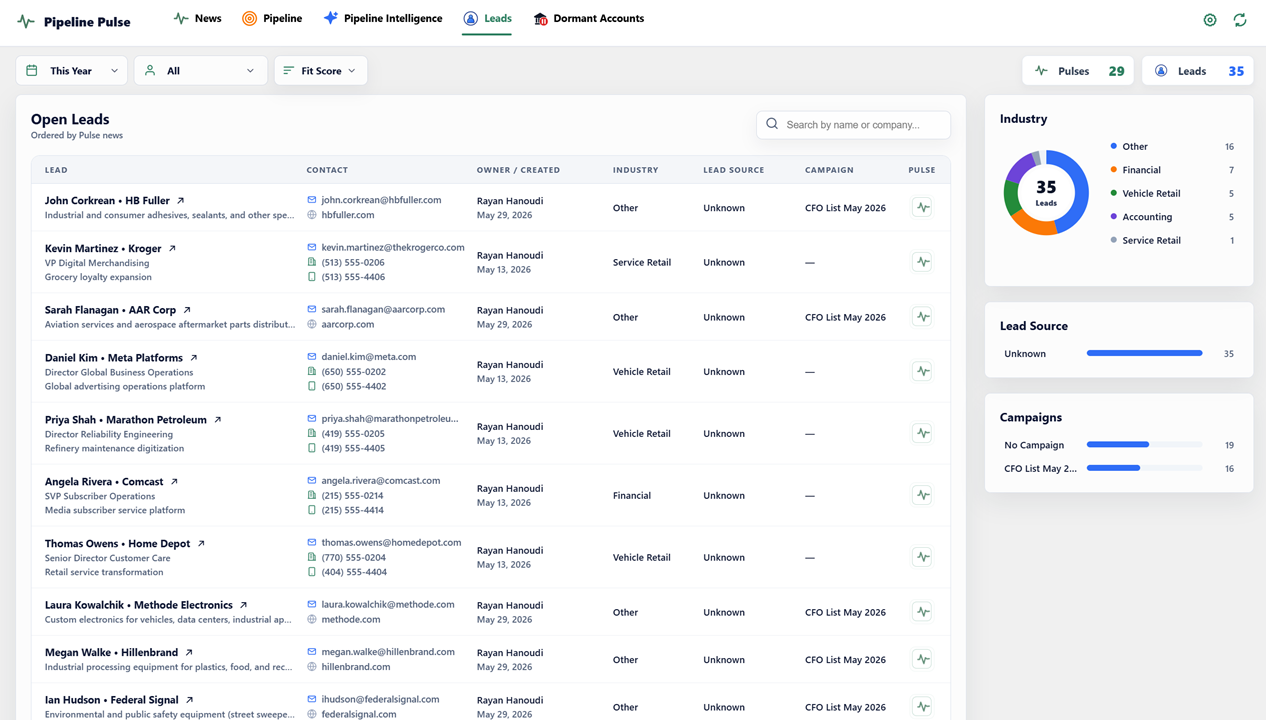
Open the Leads tab in Pipeline Pulse. It lists your open Dynamics 365 leads, ordered by Pulse news, so leads with recent, relevant events rise to the top instead of sitting wherever their created date puts them.
- Use the period, owner, and Fit Score controls to focus the list on one review period or one salesperson.
- The Pulses and Leads counts show how many signals have been found across your open leads.
- Each row keeps the CRM context reps need, including contact details, owner, industry, lead source, and campaign, with a Pulse icon to open the lead’s news.
- The Industry, Lead Source, and Campaigns panels give managers a quick view of the funnel mix.
3. Open a lead’s Pulse news
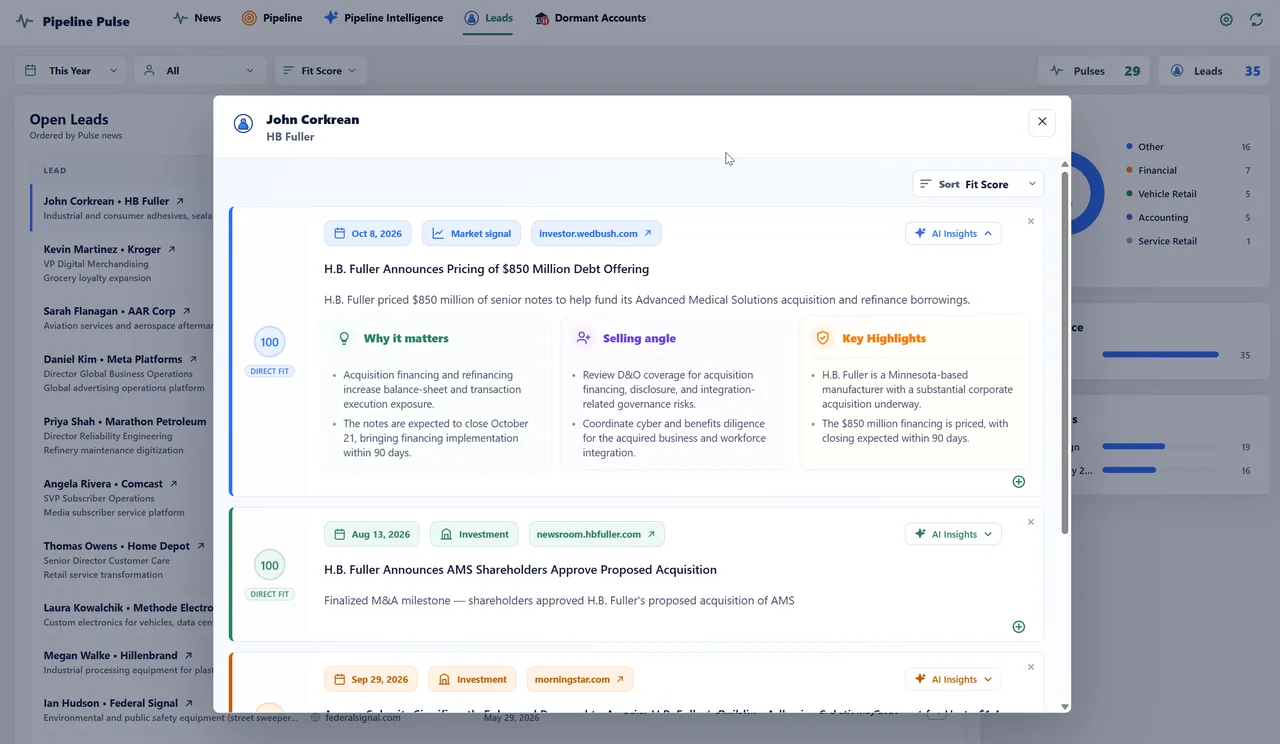
Select a lead’s Pulse icon to see every signal found for that company, sorted by fit score. Each signal card shows:
- Date, signal type, and source. When the event happened, what kind of event it is (such as a market signal or an investment), and a link to the original article.
- Headline and summary. What happened, in one or two plain sentences.
- Fit score. How closely the event matches your industries, ideal customer profile, and territories. A Direct fit of 100 is the strongest match.
- AI Insights. Expand a card to see Why it matters, a Selling angle, and Key highlights.
4. Example: from a signal to a first conversation
In the example above, the lead works at H.B. Fuller. Pulse found two direct-fit events on the company:
- A market signal: H.B. Fuller priced $850 million of senior notes to help fund its Advanced Medical Solutions acquisition and refinance borrowings.
- An investment signal: AMS shareholders approved the proposed acquisition.
The AI Insights explain why that matters (acquisition financing raises balance-sheet and integration exposure) and suggest an angle for this seller’s offer. In this case, it’s an insurance team reviewing D&O coverage, cyber diligence, and benefits for the acquired workforce. Selling angles follow the industries and offers you configure, so a software or services team would see different angles for the same event.
Without Pulse, this lead would sit in the list with a created date and an industry. With it, the rep has a timely, verifiable reason to reach out and a first line that is about the customer, not the product.
Check the source before you send. Every signal links to its original article. Open it, confirm the facts and dates, and make sure the angle fits this contact’s role before you write.
5. Fit lead news into your team’s routine
- Reps: start the day in the Leads view, filtered to your own leads. Work from the top, read the signal, check the source, and make contact while the news is current.
- Sales managers: in weekly reviews, ask which high-fit lead signals have no follow-up yet, and who owns them.
- Marketing and sales operations: use the Lead Source and Campaigns panels to spot gaps. If most leads show an Unknown source, fix how sources are captured before judging which channels work.
6. What Pulse reads on your leads
For lead research, Pipeline Pulse reads four public fields on each lead: name, website URL, city, and state. City and state help match events to the right company and location. Pulse doesn’t read your reps’ emails or activity, and lead ownership, qualification, and conversion stay in Dynamics 365. See how it works for the full data scope.
Lead news review checklist
- Which open leads have a direct-fit signal this week?
- Has the owner read the source and made contact?
- Does the selling angle fit this contact’s role, or is another person at the company a better first contact?
- Which leads have no news, and should they be worked by age or nurtured instead?
- Are lead source and campaign filled in, so you can see which channels bring leads that generate signals?
For examples of events worth acting on, see sales trigger events. To go further with news on existing customers, read how to monitor customer and prospect news.