You can calculate your team’s win rate and average sales cycle with a Dynamics 365 export and a few Excel formulas. Build the report manually first, then see how Pipeline Pulse provides the review automatically inside Dynamics 365.
1. Export closed opportunities to Excel
- In Dynamics 365, open Opportunities and use Edit filters to select (Status = Won OR Status = Lost) AND Actual Close Date in your reporting period. Set the owner or sales-team filter explicitly.
- Include Opportunity, Status, Created On, Actual Close Date, and Owner. Add Actual Revenue if you also want to compare won value.
- Select Export to Excel → Static Worksheet, where available. Export all matching records you intend to review, rather than only selected rows or the current page.
- Open the saved file. Keep an untouched copy, then use a working sheet for your calculations.
For an October report, include deals with Actual Close Date from October 1 through October 31. A deal created in May and won in October belongs in that export. Filtering Created On to October would leave it out and could make the sales cycle look artificially short.
Use the same reporting timezone and date boundaries throughout. Keep one row per opportunity so related activities do not duplicate your counts.
2. Decide what the Excel report will measure
| Metric | Formula | Scope |
|---|---|---|
| Count-based win rate | Won count ÷ (Won count + Lost count) × 100 | Opportunities closed in the reporting period, using Actual Close Date. |
| Average won-deal sales cycle | Sum of elapsed days from Created On to Actual Close Date ÷ won count | Won opportunities with Actual Close Date in the reporting period. |
| Median won-deal sales cycle | Middle duration after sorting won-deal durations | Same won-deal cohort; useful when a few very old deals skew the mean. |
Keep open deals out of the win-rate denominator. A closed-period win rate describes outcomes of decisions made in that period. It does not describe the eventual conversion of every deal created in that period.
If no deals closed, report win rate as “N/A,” not 0%. If none were won, report the won-deal sales cycle as “N/A.” A revenue-weighted rate answers a different question; label it separately rather than calling both figures win rate.
3. Add the Excel formulas
In the working sheet, select the exported range and choose Insert → Table, confirming that the range has headers. Under Table Design, name the table Deals. Use the column headers Status, Created On, and Actual Close Date exactly as shown below, or adjust the formulas to your exported headers.
Add a column named Cycle Days. In its first data row, enter:
=IF(AND([@Status]="Won",ISNUMBER([@[Created On]]),ISNUMBER([@[Actual Close Date]]),[@[Actual Close Date]]>=[@[Created On]]),INT([@[Actual Close Date]]-[@[Created On]]),"")
Excel should fill the table column automatically. This calculates whole elapsed days for won deals with valid dates and leaves other rows blank. Confirm that Excel recognizes the exported dates as dates rather than text. Normalize timestamps to the same timezone before subtracting them; if you prefer calendar days, use that convention consistently.
Put these summary formulas in cells outside the table:
| Measure | Excel formula | Display |
|---|---|---|
| Won count | =COUNTIF(Deals[Status],"Won") | Whole number |
| Lost count | =COUNTIF(Deals[Status],"Lost") | Whole number |
| Win rate | =IFERROR(COUNTIF(Deals[Status],"Won")/(COUNTIF(Deals[Status],"Won")+COUNTIF(Deals[Status],"Lost")),"N/A") | Percentage, one decimal place |
| Average won sales cycle | =IFERROR(AVERAGE(Deals[Cycle Days]),"N/A") | Number of days |
| Median won sales cycle | =IFERROR(MEDIAN(Deals[Cycle Days]),"N/A") | Number of days |
These formulas assume the sheet contains only your selected closed-period cohort and the exported status labels are Won and Lost. Use the equivalent labels if your app uses different ones. Check missing or invalid durations separately, and show the count of valid won-deal durations beside the cycle average.
Do not average each salesperson’s win-rate percentage to get the team result. Add the team’s wins and losses first, then calculate the rate from those totals.
4. Check your spreadsheet against a worked example
Illustrative source records for October 2026, with date-only values for easy arithmetic. The open deal below would be excluded from the closed-opportunity export. These are not customer results.
| Deal | Outcome | Created On | Actual Close Date | Won cycle |
|---|---|---|---|---|
| A | Won | Sep 1 | Oct 1 | 30 days |
| B | Won | Aug 15 | Oct 14 | 60 days |
| C | Lost | Sep 20 | Oct 10 | Excluded |
| D | Open | Oct 1 | — | Excluded |
- Win rate: 2 ÷ (2 + 1) = 66.7%, with three closed deals.
- Average won cycle: (30 + 60) ÷ 2 = 45 days, with two won deals.
- Median won cycle: (30 + 60) ÷ 2 = 45 days for this two-record example.
Show the sample size beside the metric. Two wins are too few to establish a reliable performance trend or justify ranking salespeople.
5. Repeat the report for the next review
To compare owners or months, build a PivotTable from the working sheet: count opportunities by Status and Owner for win/loss analysis, and average valid won-deal Cycle Days for duration. Recalculate each group’s win rate from its won and lost counts.
A static worksheet is a snapshot. For the next review, export fresh records, confirm the date and team filters, check the formulas, and rebuild or refresh the summaries. New wins, losses, and corrections in Dynamics 365 do not automatically appear in the saved static export.
That repeated preparation is the work Pipeline Pulse removes from the review.
6. Get the automatic views in Pipeline Pulse
With Pipeline Pulse installed, open Pipeline Insights and select the period and salespeople. The reporting views calculate the results from your CRM data without a separate Excel export or a workbook to maintain.
- Select Won vs Lost to review closed opportunity counts, values, average deal sizes, and overall win rate.
- Select Opportunity Sales Cycle to review average days to close and how closing duration changes by month, quarter, or business unit.
- Use the underlying records to investigate changes before deciding on a coaching action.
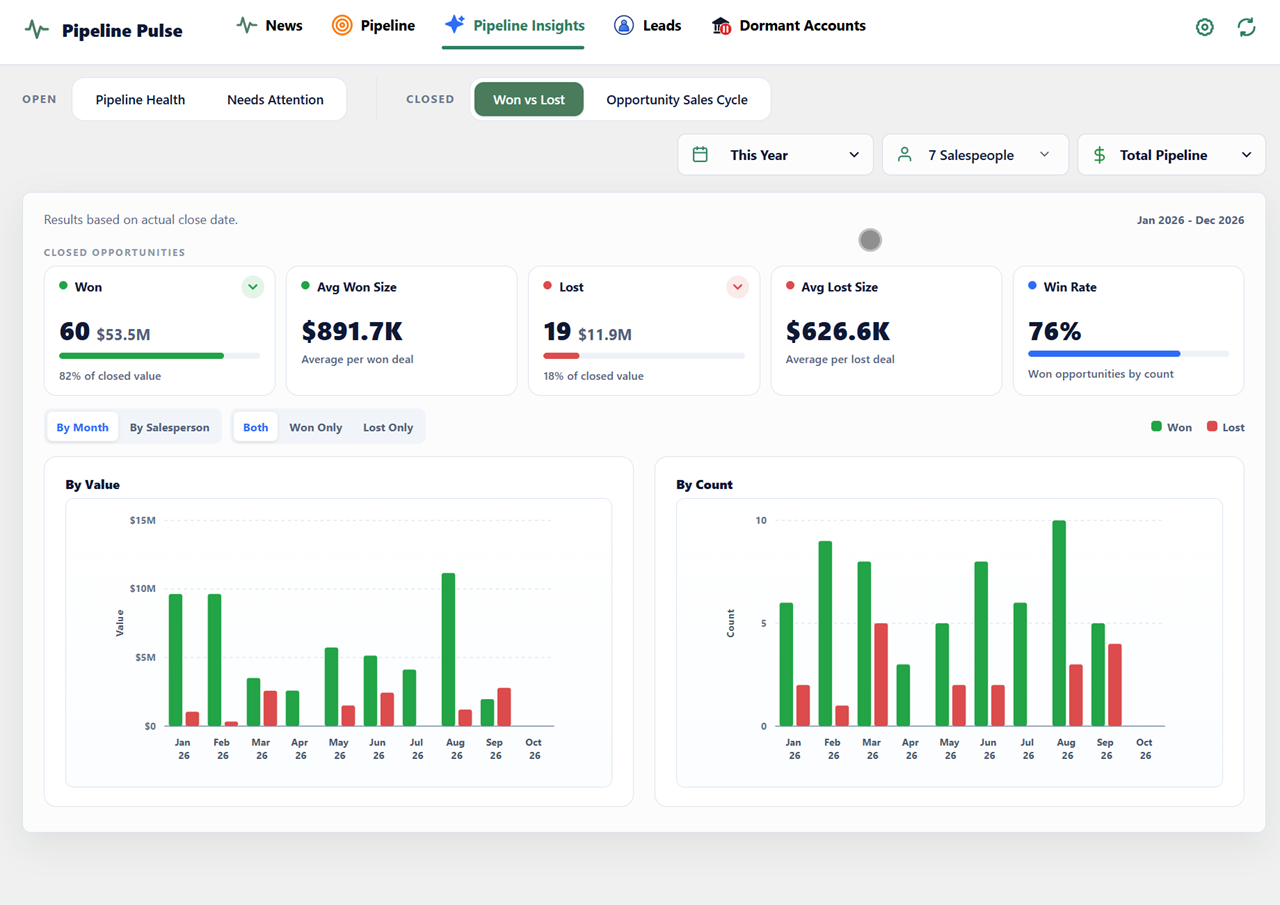
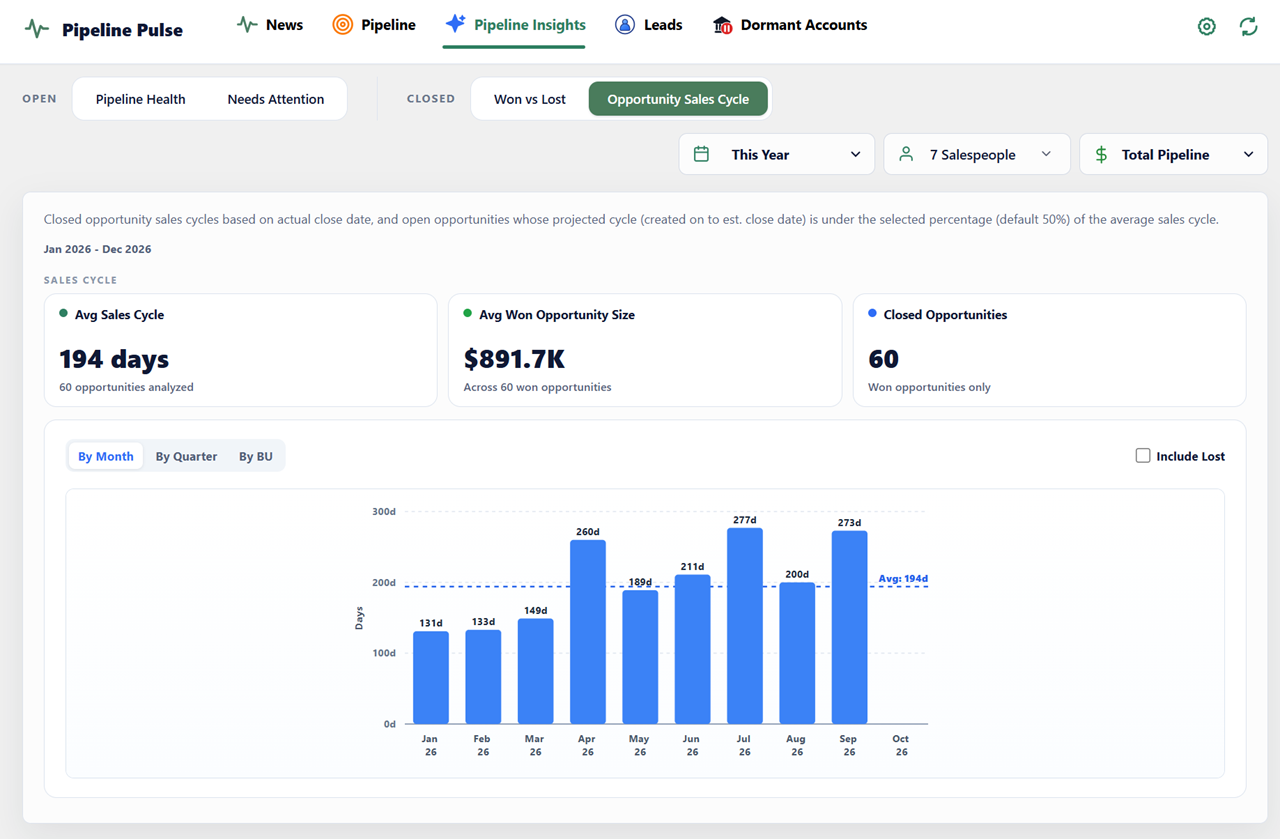
Validate the records included in each view before comparing it with a custom report. If the selected cohort, close-date field, or duration convention differs, the numbers can differ even when both calculations are internally consistent. Segment the analysis by comparable sales motions before deciding where to coach.
| Review task | Manual Excel approach | Pipeline Pulse |
|---|---|---|
| Prepare the report | Export a fresh snapshot and verify the selected rows | Choose the review period and salespeople inside Dynamics 365 |
| Calculate win rate | Maintain won/lost counts and a percentage formula | Review calculated win-rate context in Won vs Lost |
| Review average sales cycle | Calculate valid won-deal durations and summarize them | Open Opportunity Sales Cycle |
| Compare results | Build or refresh charts and PivotTables | Review the reporting views and underlying records |
Accurate statuses and close dates still matter. Pipeline Pulse automates the reporting work; your team interprets the patterns and decides what to do next.
7. Avoid common reporting mistakes
| Mistake | Why it misleads | Correction |
|---|---|---|
| Counting open deals in win rate | Changes a closed-outcome rate into a mixed metric | Use Won ÷ (Won + Lost). |
| Using Estimated Close Date for closed results | A planned date can differ from the actual outcome date | Use Actual Close Date for closed-period results. |
| Filtering Created On to the same month | Drops older deals that closed this month | Keep creation date for duration, not cohort selection. |
| Averaging rep percentages | Weights a rep with one closure like a rep with fifty | Sum wins and losses first. |
| Combining lost and won cycle times | Early disqualification can make the average look faster | Report won cycle and lost cycle separately. |
| Counting related activity rows as deals | One-to-many joins can duplicate an opportunity | Count distinct opportunity IDs. |
| Ignoring migration or reopen history | Created On and final closure may not describe one selling cycle | Flag exceptions and define how reopened deals are treated. |
Manager’s review checklist
- Are the period, team, timezone, and date convention explicit?
- Are sample sizes shown beside percentages and averages?
- Does the change remain after separating sales motions and deal sizes?
- Is the mean distorted by a small number of old records?
- Which deal review or coaching action follows from the pattern?
If the issue is stalled open pipeline, continue with stalled and aging opportunities. Use close-date pushback tracking when timing repeatedly changes.
Microsoft documentation
- Close opportunities as won or lost
- Export to an Excel static worksheet
- Calculate the difference between dates in Excel
- Opportunity pipeline view and close dates
Sources reviewed October 18, 2026. Export options and access depend on your app and permissions.
Use historical win rates to challenge the assumptions in your probability-weighted forecast. For open deals needing follow-up, look for relevant account news before choosing the next conversation.