Dynamics 365 already holds the opportunity records behind a forecast. Pipeline Insights organizes that data into four views so a leader can move from “How much pipeline do we have?” to “Where is the number fragile, which deals need action, and what does our history tell us?”
1. Pipeline Health: inspect the mix behind the total
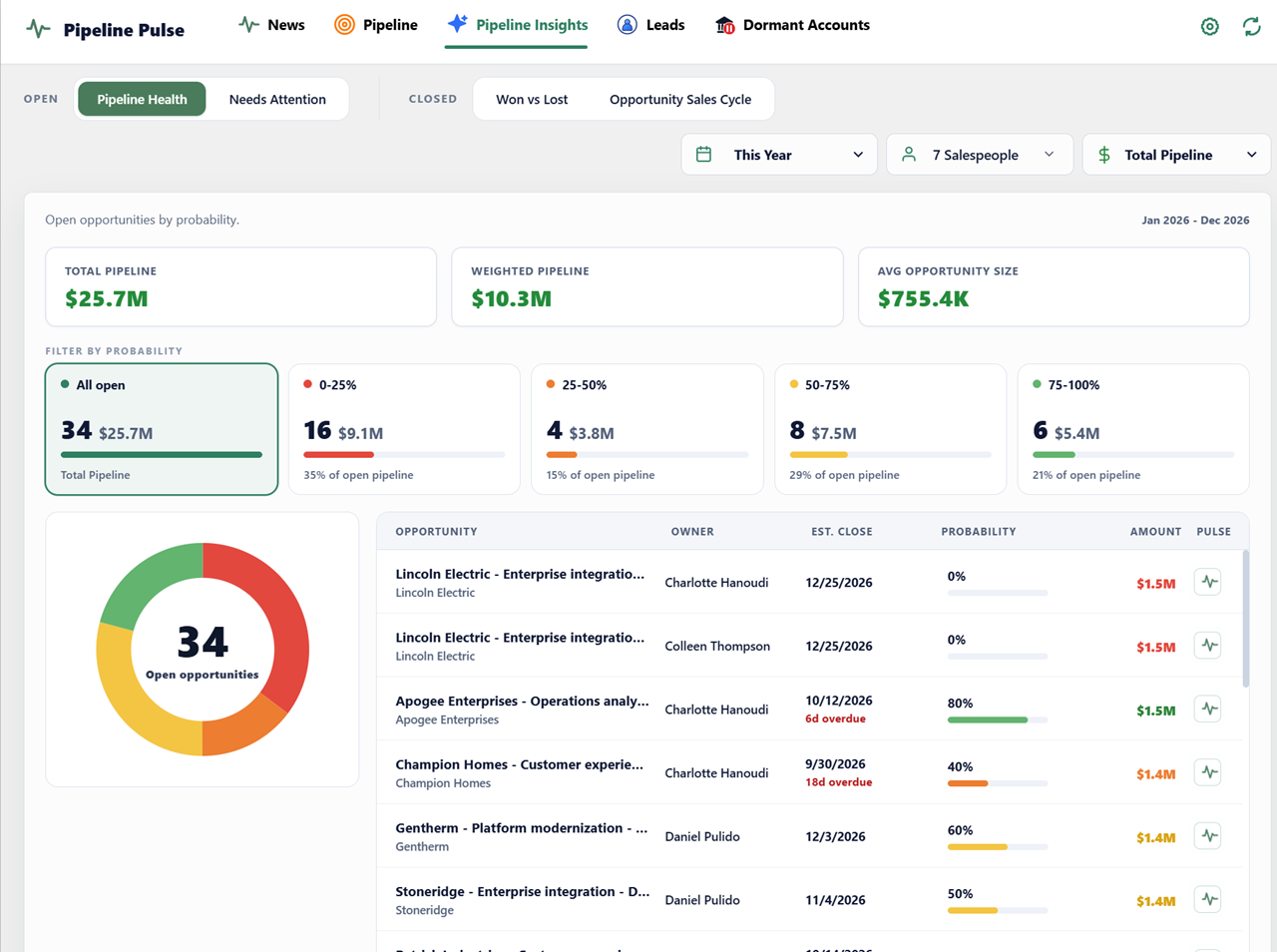
Aggregate pipeline can look reassuring while most value sits in low-probability stages. Pipeline Health groups open opportunity count and value into probability bands, while showing total pipeline, weighted pipeline, and average opportunity size for the selected period and team.
- Identify whether a few large deals carry most of the forecast.
- Separate early-stage volume from higher-confidence opportunities.
- Open the underlying records instead of treating the chart as the conclusion.
For the native calculation and reporting setup, read how to build a probability-weighted forecast in Dynamics 365.
2. Needs Attention: focus the forecast conversation
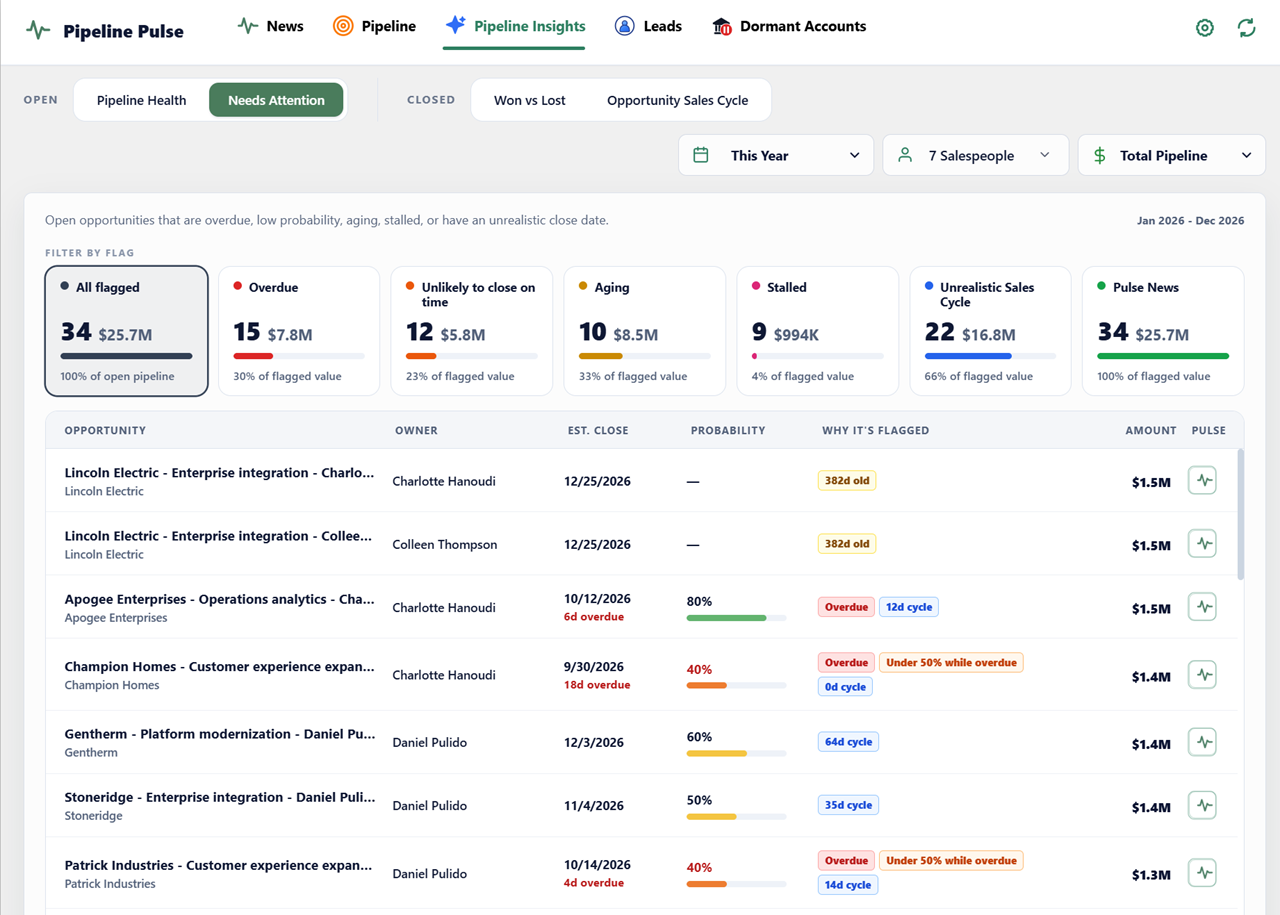
Needs Attention consolidates the at-risk opportunity review into one tab. It flags open deals that are overdue, unlikely to close on time, aging, stalled, outside a realistic sales cycle, or connected to relevant Pulse News. A deal can appear under more than one reason.
How to read the flags
- Overdue: the estimated close date has passed while the opportunity remains open.
- Unlikely to close on time: the recorded probability and remaining time do not support the current date.
- Aging: the opportunity has remained open beyond a useful review threshold.
- Stalled: the deal has stopped progressing and needs a confirmed next step.
- Unrealistic Sales Cycle: the projected cycle is materially shorter than the selected historical benchmark.
- Pulse News: sourced account context may create a timely reason to re-engage.
Review question: Which opportunities remain in the forecast even though their timing, probability, momentum, or account context calls for a new decision?
A flag starts a conversation; it does not predict the outcome. Confirm the facts with the opportunity owner before changing the stage, probability, or close date. For deeper workflows, see how to track close-date pushbacks and how to calculate days in stage.
3. Won vs Lost: learn from closed opportunities
Won vs Lost compares closed opportunity value and count using Actual Close Date. Review the win rate, average won and lost deal sizes, monthly patterns, and salesperson results without mixing open pipeline into the denominator.
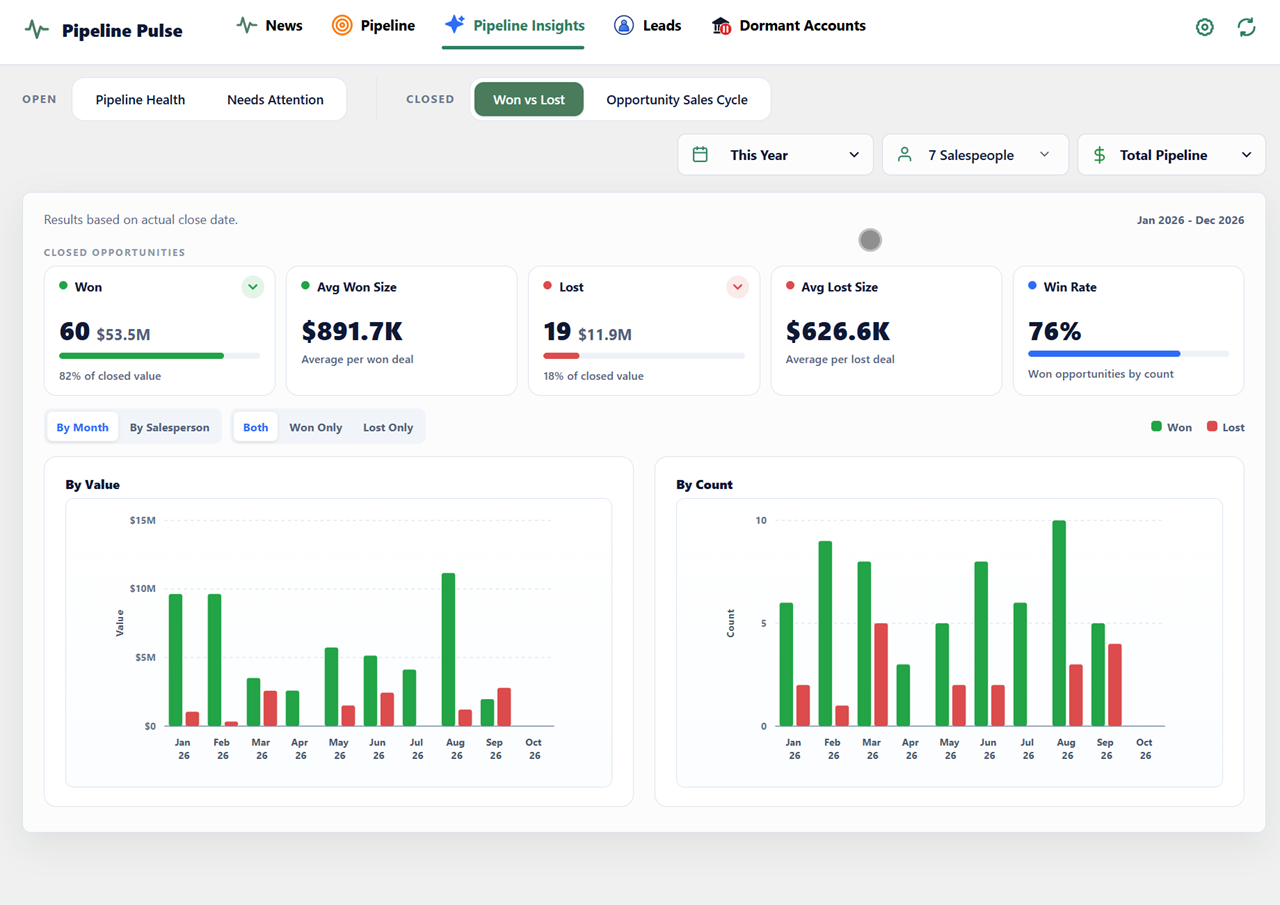
Use win/loss analysis to find questions worth investigating, not to create a leaderboard from a small sample. Check the selected period and open the records behind any change before acting on it.
4. Opportunity Sales Cycle: set realistic expectations
Opportunity Sales Cycle uses closed opportunity history to show average days to close, average won opportunity size, and closed-opportunity volume. Switch between month, quarter, and business unit views, and optionally include lost deals when the comparison is useful.
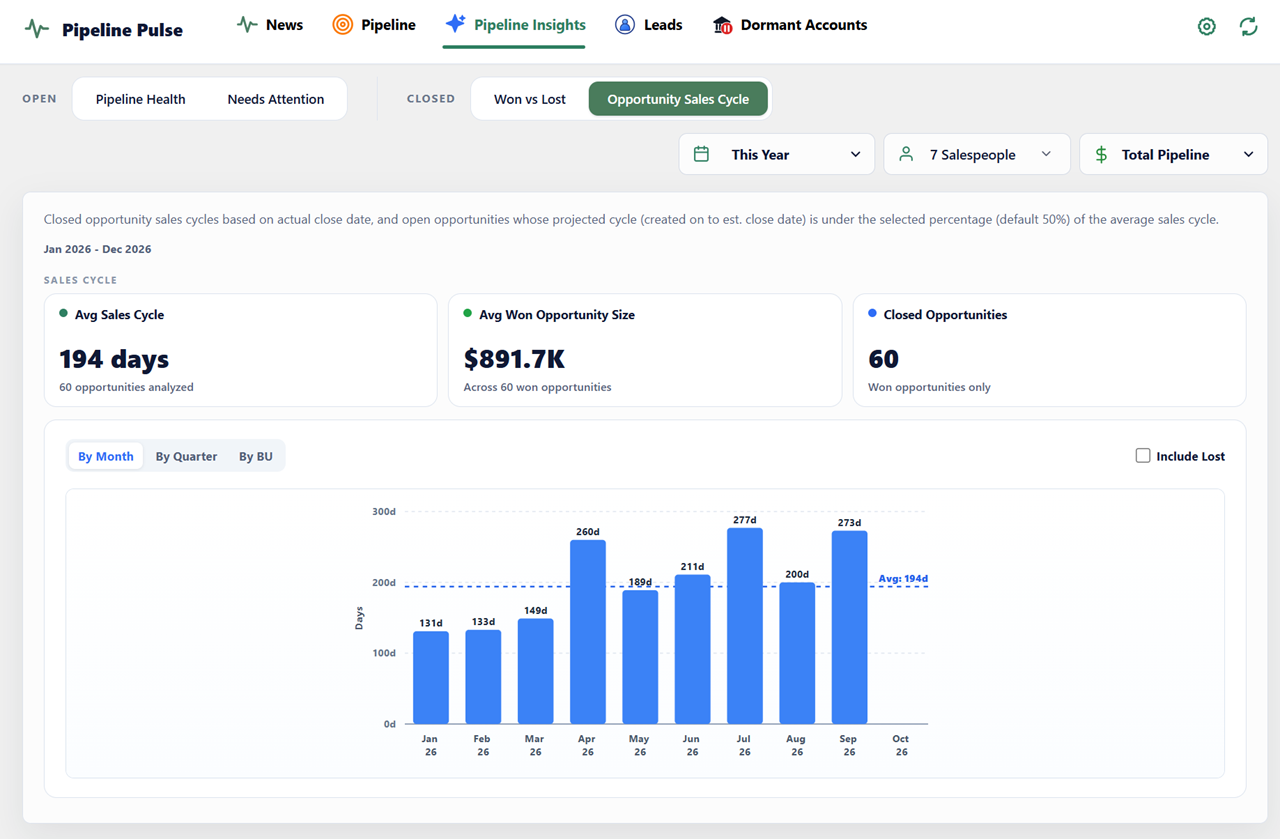
Historical days-to-close helps leaders challenge dates that assume a much faster cycle than similar work. Segment before acting: enterprise and transactional motions should not share one benchmark. For formulas and date-filter checks, use the win rate and sales cycle reporting tutorial.