You can find aging and stalled opportunities with a Dynamics 365 export and a few Excel formulas. Start by building the report manually so your team can see which deals need attention. Then use Pipeline Pulse to bring that review into Dynamics 365 automatically.
1. Export your open opportunities to Excel
- In Dynamics 365, open Opportunities and select a view of open opportunities. Set the sales team or owner filter you want to review.
- Add Opportunity, Owner, Estimated Revenue, Created On, and your team’s sales stage to the view. Include Estimated Close Date if you also want to review overdue deals.
- Select Export to Excel → Static Worksheet, where available. Make sure the export contains all matching records you intend to review, rather than only the selected rows or current page.
- Open the saved file and keep an untouched copy of the export. Use a separate working sheet for the calculations below.
For an aging review, include all open deals in the team’s scope. Filtering to opportunities created this month would hide the oldest deals before you start.
2. Separate opportunity age from time in stage
| Measure | What you need | Review starting point |
|---|---|---|
| Opportunity age | Created On date | 180 days open or longer |
| Days in current stage | Date the deal entered its current sales stage | More than 30 days in the same stage |
A 200-day-old deal that entered Propose last week is aging, but it is not stalled by the 30-day rule. A 45-day-old deal that spent 35 days in Qualify is stalled even though it is relatively young. Use the thresholds to choose conversations; adjust them to your sales cycle.
Where do you get the stage-entry date?
Created On is available for the age calculation. A reliable current-stage entry date may require a separate check. If your environment already tracks that date, include it in the export. Otherwise, review the retained stage-change history for the process or stage field your team uses and enter the verified date in the spreadsheet.
Where auditing was enabled for the relevant record and field, an authorized user can inspect its Audit History. For a Business Process Flow, ask your admin for the history of the relevant process instance. Use the most recent transition into the current stage, including a return to a previously visited stage.
If the history is unavailable, leave Stage Entered On blank and mark it for verification. Do not substitute Modified On: ordinary edits can update that date without moving the deal. Excel cannot reconstruct a missing stage-entry date from a current stage label alone.
3. Calculate age and days in stage in Excel
In the working sheet, put your review date in B1 as a real Excel date. A fixed date makes the report reproducible; use =TODAY() instead if you want the calculations to advance when the workbook recalculates.
Place the headers in row 4 and your first opportunity in row 5. Arrange columns A–F as Opportunity, Owner, Estimated Revenue, Created On, Stage Entered On, Current Stage. Add the four calculated columns below, then copy the formulas down.
| Column | Header | Formula for row 5 |
|---|---|---|
| G | Age (Days) | =IF(ISNUMBER(D5),IF(INT(D5)<=$B$1,$B$1-INT(D5),""),"") |
| H | Days in Stage | =IF(ISNUMBER(E5),IF(INT(E5)<=$B$1,$B$1-INT(E5),""),"") |
| I | Aging Flag | =IF(ISNUMBER(G5),IF(G5>=180,"Review",""),"Unknown") |
| J | Stalled Flag | =IF(ISNUMBER(H5),IF(H5>30,"Review",""),"Unknown") |
Format G and H as numbers with zero decimal places. The formulas use calendar days and strip any time portion from the source dates. Normalize dates to the same reporting timezone first, and check that Excel recognizes the exported values as dates rather than text. Missing or future dates produce a blank duration and an Unknown flag.
4. Filter the spreadsheet and prioritize the review
- Turn on filters for the header row. Filter Aging Flag = Review to see opportunities open for at least 180 days.
- Review Stalled Flag = Review separately to see deals in the current stage for more than 30 days. Requiring both flags would miss deals that match only one.
- Sort each list by Estimated Revenue, largest to smallest, so the most valuable exceptions get attention first.
- Review Unknown entries separately. Missing stage history should not look like zero days in stage.
Here is an illustrative result using an October 18, 2026 review date. These are example records, not customer results.
| Opportunity | Age | Days in stage | Action |
|---|---|---|---|
| Plant systems upgrade | 45 days | 35 days | Stalled: confirm what is preventing qualification from finishing. |
| Enterprise rollout | 200 days | 5 days | Aging: validate the long sales cycle and the evidence behind the recent stage change. |
| Services expansion | 190 days | 40 days | Both flags: agree whether to revive, requalify, or close the deal. |
A PivotTable can summarize flagged opportunity count and value by owner or stage. Keep one row per opportunity and avoid adding the same deal twice when combining the aging and stalled lists.
5. Recognize what you need to repeat
A static export is a snapshot. Before the next review, export fresh records, verify stage-entry dates where needed, copy the formulas, and rebuild or refresh the summary. TODAY changes the calculation date; it does not pull new CRM records into a static worksheet.
The manual report makes the logic clear. Maintaining it every week is the work Pipeline Pulse removes from the review.
6. Get the automatic view in Pipeline Pulse
With Pipeline Pulse installed, open Pipeline Insights → Needs Attention. Select Aging or Stalled to isolate those at-risk opportunities, see their flagged value, and review the underlying records without a weekly Excel export.
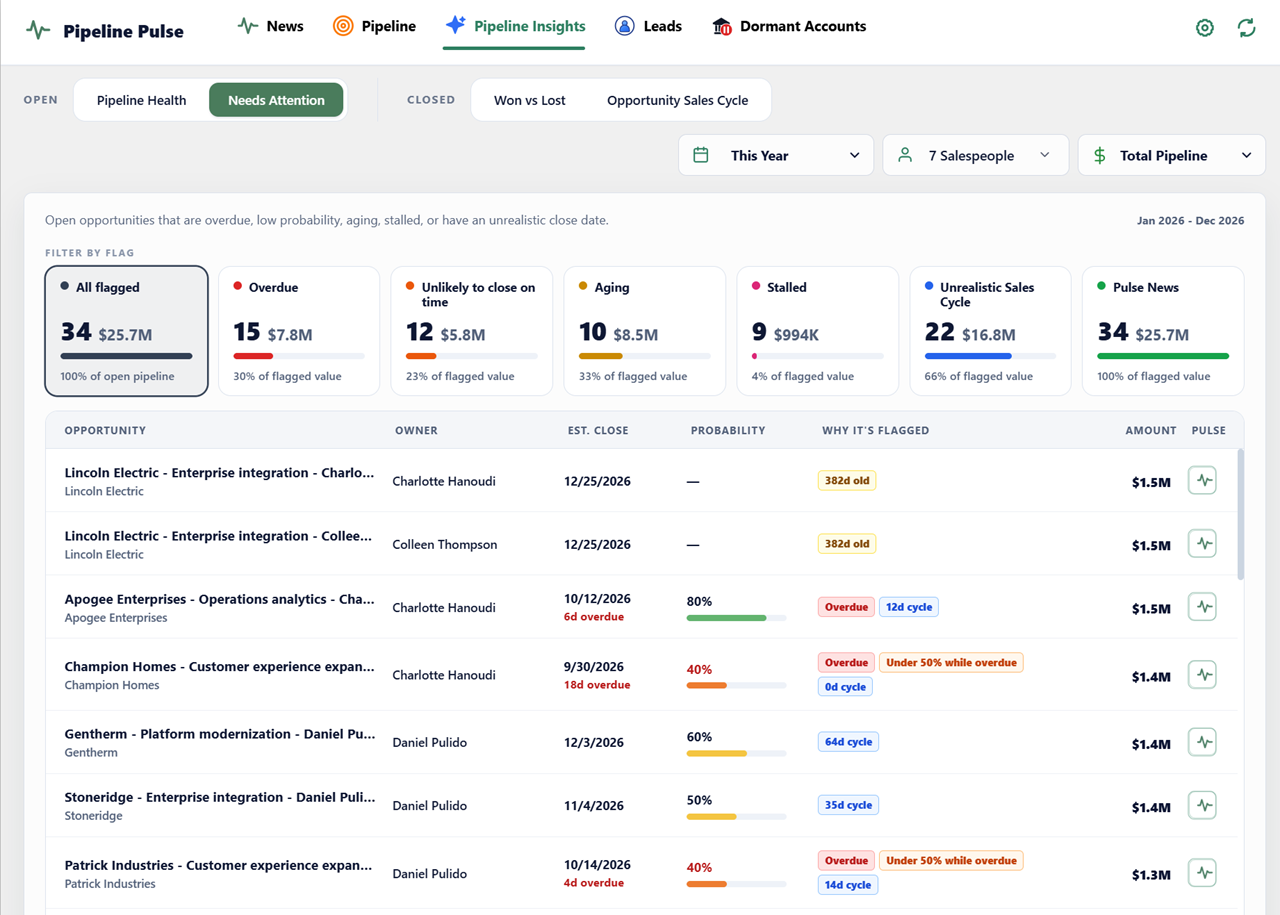
- Select the period and salespeople you want to review.
- Select Aging or Stalled from the filter cards.
- Review the count and value, then read the reason badges on each opportunity.
- Open the opportunity or its Pulse panel, confirm the buyer evidence, and agree on a next action.
| Review task | Manual Excel approach | Pipeline Pulse |
|---|---|---|
| Prepare the data | Export a fresh snapshot and maintain the working sheet | Review opportunity data inside Dynamics 365 |
| Identify aging deals | Copy and check age formulas and filters | Use the Aging filter in Needs Attention |
| Find stalled deals | Verify stage-entry dates and apply the stage-duration filter | Use the Stalled filter and reason badges |
| Prioritize the conversation | Build summaries and return to CRM records | Review flagged totals and the opportunity list together |
The automatic view still depends on accurate opportunity and stage data. It gives managers the exceptions to review; the team confirms what the buyer has done and decides what should happen next.
Manager’s action checklist
- Validate: are the stage, dates, owner, and deal value current?
- Ask: what buyer commitment supports keeping this deal active?
- Decide: advance with evidence, requalify scope and timing, or close the opportunity.
- Assign: record one clear next action, owner, and due date.
- Follow up: check the action at the next review.
Use the pipeline review checklist to structure the meeting. If close dates keep moving, continue with tracking deal slippage and close-date pushbacks.
Microsoft documentation
- Export to an Excel static worksheet
- Calculate the difference between two dates in Excel
- View Dataverse audit history
Sources reviewed October 18, 2026. Export options and access depend on your app and permissions.
For a fuller forecast review, compare these open-deal warning signs with your historical win rate and sales cycle. Then check account news for a relevant reason to reconnect with the buyer.