Your team reports $5M in open pipeline against a $2M target. It sounds comfortable—until most of that value turns out to be early-stage deals. An aggregate total answers “How much is open?” It does not answer “How much revenue can we reasonably expect in this period?”
The basic calculation: weighted value = Estimated Revenue × (Probability ÷ 100). Add the weighted values for the same team, currency basis, and expected close period. Then challenge the assumptions behind the probabilities.
1. See why the same total can tell two stories
The following USD examples use the same $5M aggregate pipeline. Probabilities are illustrative assumptions, not customer results or recommended defaults.
| Pipeline | Low-confidence deals | Higher-confidence deals | Weighted value |
|---|---|---|---|
| A: early-stage heavy | $4M at 20% = $800K | $1M at 80% = $800K | $1.6M |
| B: later-stage heavy | $1M at 20% = $200K | $4M at 80% = $3.2M | $3.4M |
Pipeline A’s gross coverage is 2.5× a $2M target, but its weighted value is only 0.8× that target. Pipeline B has the same gross coverage and a much stronger assumed mix. Neither guarantees a result: the model is only useful when its probabilities and close dates are credible.
2. Add a native Weighted Revenue column
Work in a solution in your development environment, validate the result, and promote the change through your normal release process.
- In Power Apps → Solutions, open your solution, add the existing Opportunity table if needed, and select Columns → New column.
- Create Weighted Revenue with data type Currency and behavior Calculated. Save and open the calculation editor.
- Require Status = Open, Estimated Revenue to contain data, and Probability to contain data. In the action, use
estimatedvalue * closeprobability / 100. Select the equivalent columns through the editor; custom deployments may use different fields. - Save, publish, and add Estimated Revenue, Probability, Weighted Revenue, Estimated Close Date, and Owner to a review view.
Microsoft documents both the weighted-revenue calculated-column pattern and probability normalization. Keep zero probability as zero. Treat missing probabilities or values as exceptions to resolve, rather than silently counting them as healthy coverage. If source columns are secured, review access to the calculated output too.
Check three records before rolling it out
| Estimated Revenue | Probability | Expected Weighted Revenue |
|---|---|---|
| $1,400,000 | 40% (stored as 40) | $560,000 |
| $500,000 | 0% | $0 |
| $500,000 | Missing | Exception to resolve; exclude from the trusted total until corrected |
Entering 0.40 where the field expects 40 gives the wrong result. Check the units in your actual field configuration. Also verify what happens after a deal is won or lost: the open-pipeline view should exclude it, even if a stored or calculated value is still visible elsewhere.
3. Build a forecast view with a consistent scope
- On Opportunities, create a view with Status = Open and Estimated Close Date within the reporting period. Select the team explicitly; “current user” is not the whole sales organization.
- Include gross and weighted value beside probability, owner, and close date. Make a separate exception view for missing values, missing probabilities, and missing close dates.
- Create a chart using Sum of Weighted Revenue grouped by Owner or Probability, then add it beside a gross pipeline chart and an overdue-deals list on a dashboard. If your chart/report designer cannot aggregate the chosen calculation, export the same scoped rows and sum Weighted Revenue in Excel or Power BI.
- Use a single reporting currency. For a multi-currency pipeline, aggregate the corresponding base-currency values or apply a consistent exchange-rate model in your reporting tool; do not add different currencies directly.
- Compare against the remaining target for the period if actual won revenue is reported separately. Avoid adding closed-won value twice.
Scope check: January deals should not cover an October target. Overdue opportunities deserve their own review instead of disappearing from management attention simply because they fall outside the current-period filter. For saved-view and dashboard instructions, use the Dynamics 365 pipeline dashboard guide.
4. Make probabilities defensible
A weighted forecast based on optimistic rep estimates can still be optimistic. Agree on the buyer evidence needed for each stage and compare those assumptions with actual outcomes over time.
- Use comparable cohorts: compare deals from the same segment, sales motion, and stage at a recorded point in time. Looking only at the final stage of won deals introduces bias.
- Keep snapshots: store stage, probability, value, and close date at each forecast review so you can evaluate what the team knew then.
- Show uncertainty: flag small samples, inconsistent historical data, and concentrated exposure to one large deal.
- Separate timing from winning: probability of eventually winning is not automatically probability of closing this month.
This is a transparent probability-weighted pipeline estimate. It is distinct from Dynamics 365’s forecast-category rollups and Microsoft’s predictive forecasting. Use explicit definitions when comparing those numbers; they are not interchangeable.
5. Open Pipeline Health to inspect the mix
After installing Pipeline Pulse, open Pipeline Insights → Pipeline Health. Choose the period and salespeople, then inspect opportunity count and value grouped by probability. This is the first of the four Pipeline Insights views.
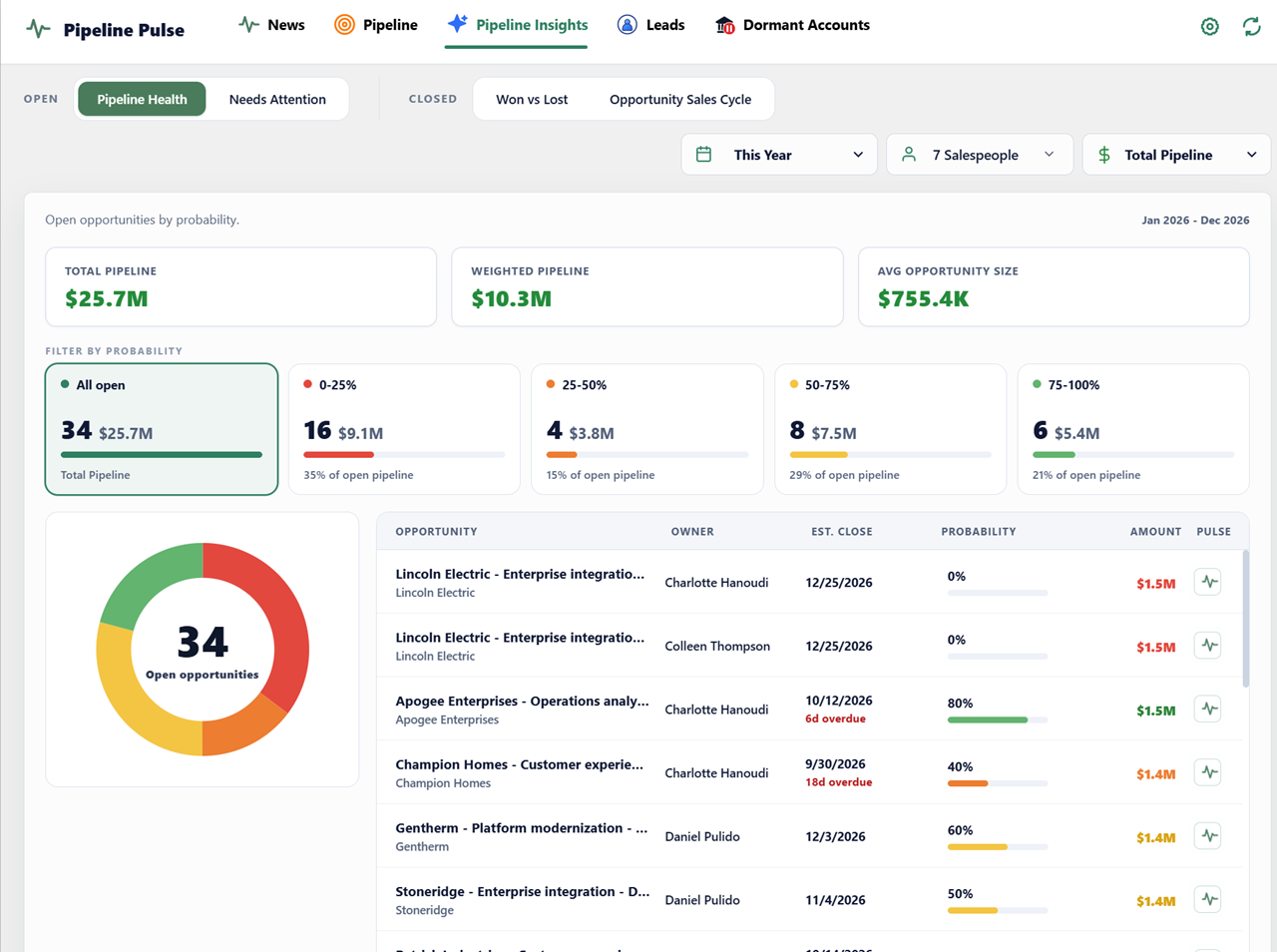
Use that mix to decide where to investigate before trusting a headline total. Are low-confidence deals carrying most of the target? Does one $1.5M deal dominate a probability band? Switch to Needs Attention to review close-date, aging, stalled, and sales-cycle exceptions.
What this view adds: a focused probability breakdown for the pipeline conversation. It does not calculate the native Weighted Revenue column from this tutorial or replace your forecasting model. Keep the weighted calculation alongside it when you need a weighted total.
Use the deal slippage tutorial to investigate date pushbacks and the days-in-stage tutorial to investigate stalled momentum.
Microsoft documentation
- Calculated columns and weighted revenue
- Microsoft opportunity-health reference architecture
- Predictive forecasting and its separate prediction column
Sources reviewed October 18, 2026. Menu labels can vary by app version. Native configuration requires the appropriate customization permissions and use rights.
Before choosing probability bands, compare them with your historical win rate and sales cycle. For the largest uncertain deals, review customer and prospect news for business changes to discuss with the buyer.