Dynamics 365 dashboards are built from two parts: a view that decides which records are included, and a chart or list that decides how they are shown. Most dashboards that mislead do so because the view underneath is wrong, such as an “open pipeline” chart that still includes last year’s overdue deals. Start with the questions, then the views, and the charts will follow.
1. Decide what the dashboard must answer
| Question | What to show |
|---|---|
| How solid is this period’s forecast? | Open value by probability band or forecast category for deals closing this period |
| Which deals need attention? | Overdue open opportunities, sorted by value |
| Where is momentum? | Open value by stage, and deals closing in the next 30 days |
| What happened to closed deals? | Won versus lost value for the period, filtered by Actual Close Date |
A standard Dynamics 365 dashboard holds up to six components, so pick the six that answer these questions and leave the rest to drill-downs.
2. Create the views first
On the Opportunities grid, use Edit filters and Save as new view to create each of these. Set the team scope deliberately, since a view filtered to “Owner equals current user” will show each manager only their own deals.
| View | Filter |
|---|---|
| Open: closing this quarter | Status = Open AND Estimated Close Date in this fiscal quarter |
| Open: overdue | Status = Open AND Estimated Close Date before today |
| Open: next 30 days | Status = Open AND Estimated Close Date in the next 30 days |
| Closed: this quarter | Status = Won or Lost AND Actual Close Date in this fiscal quarter |
Filter closed deals by Actual Close Date, not Estimated Close Date or Created On. A deal created last year and won this month belongs in this month’s results.
3. Add the charts
Dynamics 365 Sales includes system charts for opportunities, and you can create personal charts from the Opportunities grid by showing the chart pane and creating a new chart. In the chart designer, the legend entries (series) set what is measured, such as the sum of Estimated Revenue, and the horizontal (category) axis sets how it is grouped, such as Probability or Owner. Exact labels vary by app version.
A six-component layout that covers the four questions:
| Component | View | Type and setup |
|---|---|---|
| Forecast shape | Open: closing this quarter | Column chart: sum of Estimated Revenue by Probability |
| Pipeline by stage | Open: closing this quarter | Funnel chart: sum of Estimated Revenue by sales stage or pipeline phase |
| Pipeline by owner | Open: closing this quarter | Bar chart: sum of Estimated Revenue by Owner |
| Overdue deals | Open: overdue | List, sorted by Estimated Revenue descending |
| Closing soon | Open: next 30 days | List, sorted by Estimated Close Date |
| Won versus lost | Closed: this quarter | Column chart: sum of Actual Revenue by Status |
If your organization uses multiple currencies, chart the base-currency revenue columns so totals add up correctly.
4. Assemble and share the dashboard
- Go to Dashboards and, on the command bar, select New > Dynamics 365 Dashboard.
- Choose a layout, select Create, and name the dashboard, for example “Pipeline review.”
- Select a component area. In Add Component, choose the record type (Opportunity), the view, and the chart, then select Add. Repeat for up to six components.
- Select Save. The dashboard appears under My Dashboards, and Set as default makes it your landing page.
- To share a personal dashboard, your security role needs sharing privileges. Share any personal views and charts it uses as well, since they have separate permissions.
For a dashboard the whole team should see, ask an administrator to create a system dashboard in a solution in Power Apps (New > Dashboard) and publish it.
5. Know what a standard dashboard can’t show
Native charts summarize the current state of each record. Some important review questions need history or outside context that the opportunity table doesn’t store by default:
- Slippage: how many times a close date moved. This needs close-date history. See how to track deal slippage in Dynamics 365.
- Time in stage: how long a deal has sat in its current stage. This needs stage-entry history, and Modified On is not a substitute.
- Account changes: whether an acquisition, leadership change, or expansion has changed a deal’s timing. That context comes from outside the CRM.
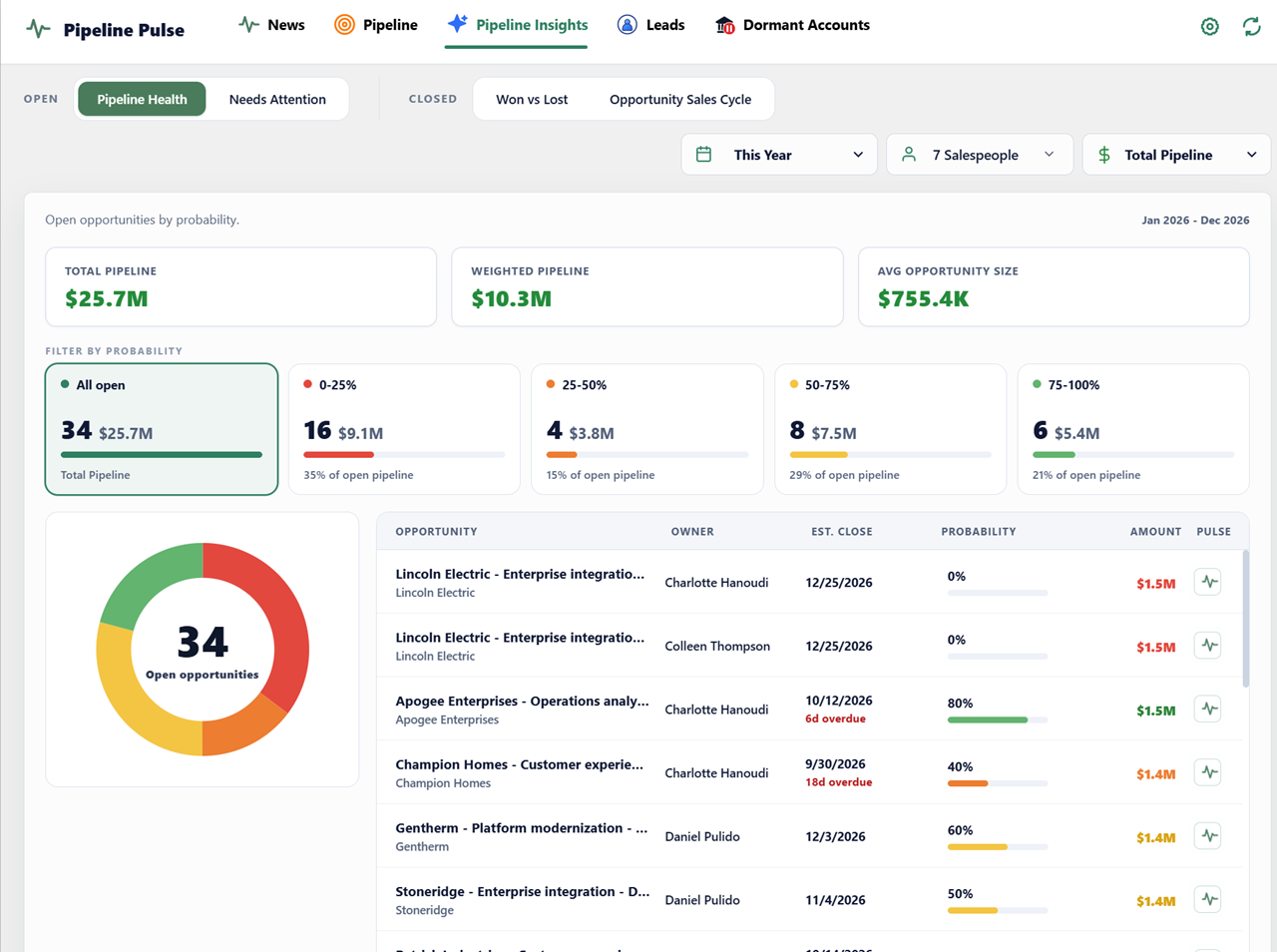
Pipeline Pulse adds four focused views inside Dynamics 365: Pipeline Health, Needs Attention, Won vs Lost, and Opportunity Sales Cycle. Needs Attention brings at-risk, aging, stalled, unrealistic-cycle, and sourced account-news flags into one review. The native dashboard above is still worth building, since it gives every manager a shared starting point.
Microsoft documentation
Track your progress with dashboards and charts, Create or edit model-driven app dashboards, and Create or edit a system chart. Reviewed October 5, 2026.