The forecast-call problem: “Why didn’t we know this $1.4M deal was slipping?” The answer requires two things: a history of date changes and a shared list of deals that need attention now.
Deals rarely fail with a clear “no.” More often, the Estimated Close Date moves out one month at a time while the opportunity stays in the forecast. Dynamics 365 overwrites that date on every edit, so a standard view can’t tell you whether a deal is on its first close date or its fifth. This guide covers two ways to capture that history and how to use it in a pipeline review.
1. Define what you will measure
Agree on definitions before you build anything, so every manager reads the numbers the same way.
| Measure | Definition | Use it to ask |
|---|---|---|
| Push count | Number of times the Estimated Close Date moved to a later date | Is this deal’s timing supported by a buyer event? |
| Days slipped | Current Estimated Close Date minus the original Estimated Close Date | How far has the expected timing drifted? |
| Slip rate | Deals in a fixed baseline cohort that pushed at least once ÷ all deals in that same cohort | Is slippage a deal problem or a process problem? |
| Slipped value | Estimated Revenue of deals that pushed out of the period | How much of the forecast moved? |
Count only moves to a later date as pushes. A date pulled forward is not a push; verify the buyer’s timeline rather than assuming it is good news.
2. Capture close-date history
Neither option below automatically fills in history from before capture began. Existing retained audit records can support a separately implemented historical backfill. Start capturing history at least one full sales cycle before you rely on slippage trends.
Option A: Turn on Dataverse auditing for Estimated Close Date
Auditing records the old and new value each time a column changes. It is the quickest way to see a single deal’s history, and it needs no custom columns. A system administrator or system customizer completes these steps.
- In the Power Platform admin center, open the environment, select Settings, expand Audit and logs, and select Audit settings. Turn on Start Auditing and choose a retention period that fits your data policy.
- In Power Apps, go to Tables, open Opportunity, select Edit table properties, expand Advanced options, and select Audit changes to its data.
- Under Columns, open Estimated Close Date, expand Advanced options, select Enable auditing, and save. Publish the customization.
- To review a deal, open the opportunity, select Related > Audit History, and filter on Estimated Close Date. Users need the View Audit History privilege.
Audit logs use Dataverse log storage, and Microsoft notes that they can appear with a delay. Audit History is useful for one deal at a time. It does not give you a sortable push count across the pipeline, so most teams pair it with Option B.
Why Audit History slows down a forecast call
Audit History can establish who changed a date and when. But a manager needs to compare the team’s largest risks on one screen. Opening opportunities individually, filtering their logs, and counting pushes during a live call makes that comparison cumbersome. The environment-wide Audit Summary is also an audit log, rather than a ready-made slippage report.
Keep the audit trail for investigation. Use reporting columns or a change-event table for pipeline-wide push counts, and a current-risk view for the meeting. Auditing only captures changes after it is enabled, and retained history depends on your retention settings.
Option B: Store push count and original date on the opportunity
Add three custom columns to Opportunity so slippage can be filtered, sorted, and charted like any other field:
- Original Close Date (date only): the first Estimated Close Date on record.
- Previous Close Date (date only): the last value the flow saw.
- Close Date Push Count (whole number): starts at 0.
Then create a Power Automate cloud flow with the Dataverse trigger When a row is added, modified or deleted:
- Set the change type to Added or Modified, the table to Opportunities, and the scope to Organization.
- In Select columns, enter
estimatedclosedateso the flow runs only when that column is included in an update. - Read the stored tracking columns. If the incoming Estimated Close Date is blank, flag it for review and stop without clearing the last known date. If no baseline exists, set Original Close Date and Previous Close Date to the first nonblank date, set Push Count to 0, and stop.
- If the new Estimated Close Date is later than Previous Close Date, add 1 to Close Date Push Count.
- Set Previous Close Date to the new Estimated Close Date.
This is a lightweight tracking pattern for low-volume environments, rather than a transaction-safe change ledger. The trigger can run even when an update resends the same date, which is why the flow compares against Previous Close Date instead of counting every run. Because the flow updates only the custom columns, it doesn’t trigger itself again. For existing open deals, run a one-time update that copies the current Estimated Close Date into Original and Previous Close Date so counting starts from today. Label this as a tracking baseline, rather than the deal’s true original close date.
Handle retries and rapid edits: serialize flow runs, compare the incoming date with stored Previous Close Date, and update the counter and previous value together. This reduces overlap but does not guarantee ordered, exactly-once capture. Where every transition matters, use a synchronous Dataverse plug-in with pre/post values and an idempotent change-event table. Test duplicate delivery, blank dates, moves forward and backward, and two rapid updates before using the counters in management reports.
3. Build slippage views for the review
With the custom columns in place, save these views on Opportunities using Edit filters and Save as new view:
| View | Filter | Sort and columns |
|---|---|---|
| Repeat pushers | Status = Open AND Close Date Push Count ≥ 2 | Sort by Estimated Revenue descending; show Original Close Date, Estimated Close Date, Owner |
| Pushed out of this quarter | Status = Open AND Original Close Date in this quarter AND Estimated Close Date after this quarter | Sort by Estimated Revenue descending |
| Never moved | Status = Open AND Close Date Push Count = 0 AND Estimated Close Date before the review date | Overdue deals whose dates were never updated |
To calculate days slipped in a view, add a calculated column that returns the difference in days between Original Close Date and Estimated Close Date, or calculate it in Excel or Power BI from an export.
4. Worked example
Illustrative records with hypothetical date changes: all amounts are USD. These show the arithmetic, not customer results.
| Opportunity | Value | Close-date history | Push count | Days slipped |
|---|---|---|---|---|
| Plant expansion | $120,000 | Sep 30 → Oct 31 → Nov 30 | 2 | 61 |
| Fleet renewal | $60,000 | Sep 15 → Oct 20 | 1 | 35 |
| Service contract | $45,000 | Oct 15 (won Oct 10) | 0 | 0 |
Using these three deals as a fixed baseline cohort, two of three pushed: a 67% slip rate. $180,000 of $225,000 in expected value moved at least once. The plant expansion is the review priority: it has pushed twice, carries the most value, and has moved out of its original September reporting period. Ask what buyer milestone supports November 30 before keeping it in the forecast.
Bring current risks into the same review: Pipeline Pulse’s Needs Attention view brings overdue and other at-risk opportunities together inside Dynamics 365. Keep the date-change tracking above for historical push counts and previous close dates. See the Needs Attention workflow and dashboard →
5. Use slippage in the pipeline review
- Open with slipped value for the period, not just the forecast total.
- Review repeat pushers by value. For each, ask what changed and which buyer event supports the new date.
- Agree on a rule for deals that push repeatedly, such as moving them to a lower forecast category after a set number of pushes.
- Look for patterns by stage, segment, or owner, and treat them as coaching questions, not verdicts.
- Record the agreed next action and owner on the opportunity before the meeting ends.
Slippage is a signal to investigate. A pushed date can reflect a legitimate change in the buyer’s timeline, and a deal that never moves can still be stale. Use the numbers to choose which conversations to have. The pipeline review checklist gives a 30-minute agenda for running them.
6. Open Pipeline Pulse’s Needs Attention view
Once Pipeline Pulse is installed, open Pipeline Insights, choose the period and salespeople, and select Needs Attention. One tab brings current close-date, momentum, and sales-cycle risk into the review without opening each opportunity’s audit trail.
- Review Overdue opportunities: open deals whose Estimated Close Date is before today.
- Review Due Soon <75%: open deals closing within the next 30 days with a probability below 75%.
- Work through the opportunity list by value. Confirm the buyer milestone, next action, owner, and due date; use the Pulse icon for sourced account context.
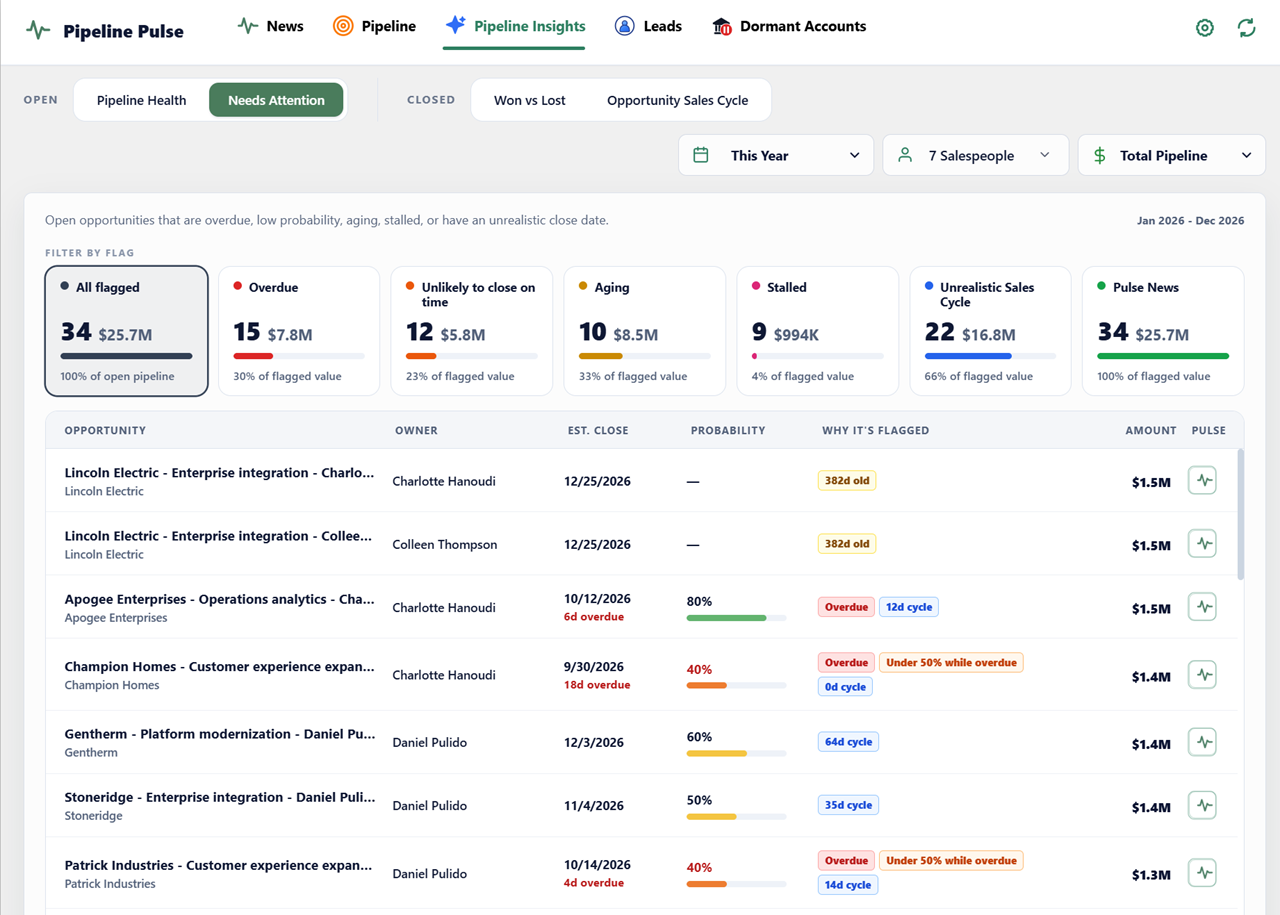
The $1.4M example: a deal closing next week at 40% deserves a review before its date passes. If its date is moved farther into the future, it may no longer match either flag. Keep your date-change history to identify that pushback.
Two different questions: Needs Attention shows current exceptions, including overdue and unlikely-to-close-on-time flags. It does not reconstruct previous close dates or calculate historical push counts. Use it alongside the native history and slippage views above.
Next, check whether the same deal has stopped progressing with the days-in-stage tutorial, then assess its contribution to a probability-weighted forecast.
Microsoft documentation
Manage Dataverse auditing and Trigger flows when a row is added, modified, or deleted. Reviewed October 18, 2026.
View setup: Create and manage personal views.